Stable Diffusion NSFW Guide: Complete Setup for Uncensored Art
Stable Diffusion is the most powerful tool available for generating uncensored AI art. Unlike commercial platforms that impose content restrictions, Stable Diffusion is open-source software that runs on your own hardware with no filters, no content policies, and no account bans. You control everything—the models, the settings, the output, and the content boundaries.
But that freedom comes with a learning curve. Setting up Stable Diffusion for NSFW generation involves choosing the right interface, selecting appropriate models, configuring settings, and learning prompt techniques that produce quality results. This guide walks through every step, from initial installation to generating polished adult content.
What You Need: Hardware Requirements
Stable Diffusion runs on your local computer using your GPU (graphics card) for processing. Here are the realistic hardware requirements for NSFW image generation in 2026:
Minimum specs:
- NVIDIA GPU with 6GB VRAM (GTX 1660, RTX 3060, or equivalent)
- 16GB system RAM
- 20GB free storage for models and outputs
- Windows 10/11 or Linux
Recommended specs:
- NVIDIA GPU with 12GB+ VRAM (RTX 3060 12GB, RTX 4070, RTX 4090)
- 32GB system RAM
- 100GB+ SSD storage (models are large, and you will collect many)
- Windows 11 or Linux
Can you use AMD GPUs? Yes, but with caveats. AMD support has improved through DirectML and ROCm, but NVIDIA GPUs still offer better performance, wider compatibility, and fewer setup issues. If you are buying hardware specifically for Stable Diffusion, NVIDIA is the safer choice.
No GPU at all? Cloud services like Google Colab, RunPod, and Vast.ai let you rent GPU time remotely. You run Stable Diffusion on their hardware and access it through your browser. Costs range from $0.20-0.80/hour depending on the GPU tier.
Step 1: Choose Your Interface
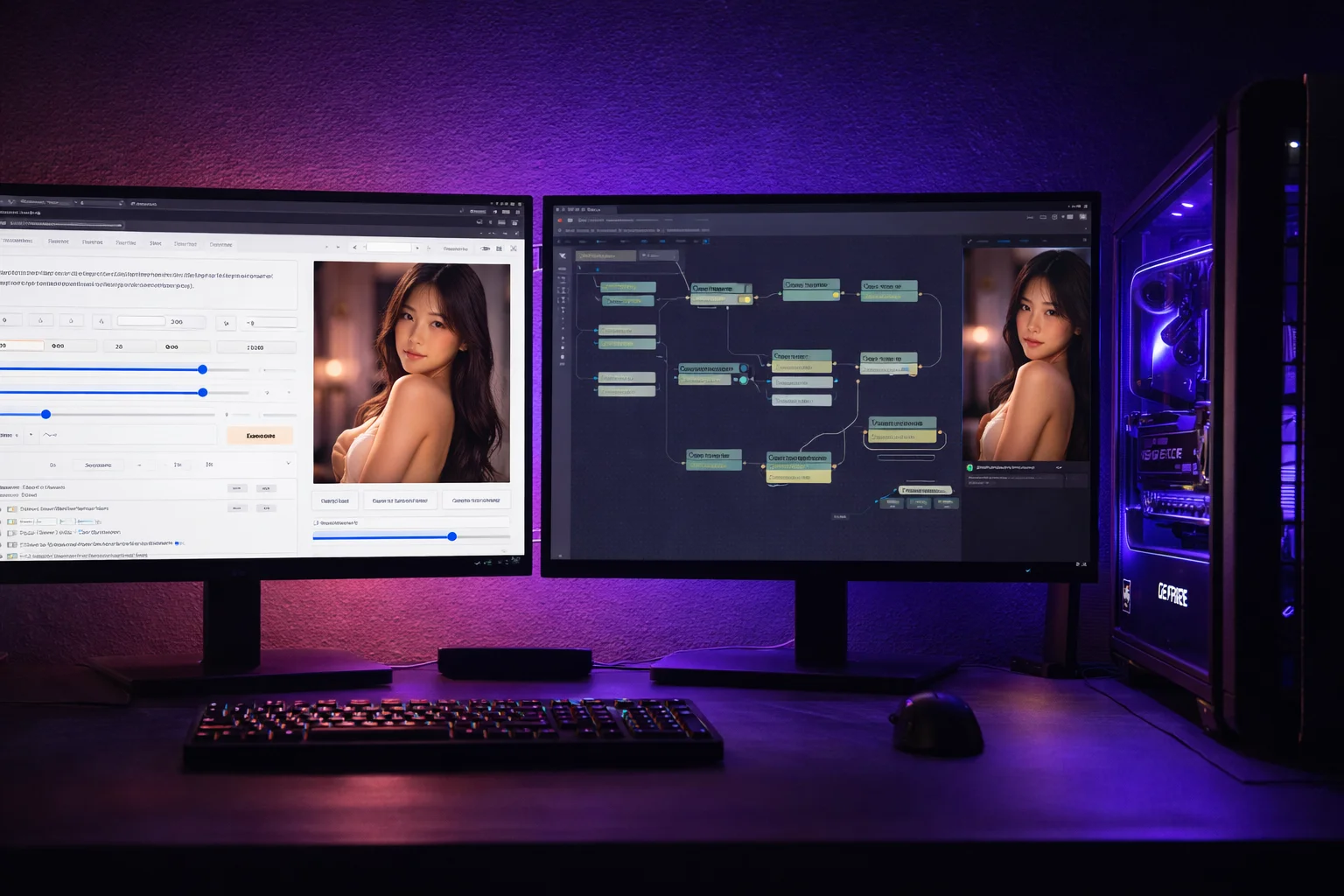
Stable Diffusion itself is just an AI model. You need a user interface (UI) to interact with it. Two options dominate the space:
Automatic1111 (AUTOMATIC1111 Web UI)
The most popular Stable Diffusion interface. Automatic1111 provides a web-based UI with extensive features, settings for every parameter, and broad extension support. Most tutorials, guides, and community resources reference this interface.
Pros: Massive extension library, exhaustive settings control, largest community support, well-documented.
Cons: Can feel overwhelming for beginners, slower than ComfyUI for complex workflows.
Most popular Stable Diffusion web UI.
ComfyUI
A node-based interface where you build image generation workflows by connecting processing nodes visually. ComfyUI is faster, more memory-efficient, and offers more precise control over the generation pipeline.
Pros: Better performance, lower VRAM usage, precise workflow control, excellent for batch processing.
Cons: Steeper initial learning curve, node-based interface can confuse beginners, fewer beginner-friendly tutorials.
Recommendation for NSFW generation: Start with Automatic1111 if you are new to Stable Diffusion. The interface is more intuitive, and the community resources will help you troubleshoot issues faster. Move to ComfyUI once you are comfortable with the basics and want more control.
Step 2: Install Your Chosen Interface
Installing Automatic1111
- Install Python 3.10.x from python.org (check “Add to PATH” during installation)
- Install Git from git-scm.com
- Open a terminal and clone the repository:
git clone https://github.com/AUTOMATIC1111/stable-diffusion-webui.git - Navigate into the folder and run
webui-user.bat(Windows) orwebui.sh(Linux/Mac) - The first launch downloads required files automatically. This takes 10-30 minutes depending on your internet speed
- Once complete, open your browser to
http://127.0.0.1:7860
Installing ComfyUI
- Download the latest release from the ComfyUI GitHub page
- Extract the archive to your preferred location
- Run
run_nvidia_gpu.bat(Windows) or follow the Linux installation instructions in the README - Access the interface at
http://127.0.0.1:8188
Both interfaces install without NSFW filters by default. No additional configuration is needed to enable adult content generation—this is a key advantage over commercial alternatives.
Node-based Stable Diffusion UI. Maximum control.
Step 3: Select NSFW-Capable Models
The AI model (called a “checkpoint”) determines what kind of images Stable Diffusion produces. Base models from Stability AI include a safety checker, but community-created models trained specifically for NSFW content do not. Here are the best options by category:
Photorealistic NSFW Models
- Realistic Vision: The gold standard for photorealistic generation. Handles skin textures, lighting, and anatomy well. Multiple versions available—use the latest for best results.
- CyberRealistic: Produces highly detailed realistic images with a slightly polished, commercial photography feel. Strong with portraits and figure work.
- epiCRealism: Natural-looking outputs that avoid the “too perfect” AI look. Good for images that should look like actual photographs.
Anime and Illustration NSFW Models
- AnyLoRA: Versatile anime model that works well with character LoRAs. Produces clean linework and vibrant colors.
- MeinaMix: Popular anime checkpoint with strong composition and detailed backgrounds. Handles complex scenes well.
- AbyssOrangeMix3: Specializes in high-quality anime and hentai generation with excellent anatomy handling.
SDXL Models (Higher Quality, More VRAM)
- RealVisXL: SDXL version of Realistic Vision. Significantly higher detail and resolution, requires 8GB+ VRAM.
- Juggernaut XL: Excellent all-around SDXL model with strong NSFW capabilities. Produces stunning realistic and semi-realistic images.
- Pony Diffusion XL: Designed for anime and illustrated content at SDXL quality. Active community with regular model updates.
Where to download: Civitai.com is the primary repository for NSFW-capable models. Each model page includes example images, recommended settings, and user reviews. Download the model file (.safetensors format) and place it in your interface’s models folder.
Step 4: Understand LoRAs and Embeddings
Beyond checkpoint models, two additional tools help you fine-tune NSFW generation:
LoRAs (Low-Rank Adaptation): Small add-on files that modify a base model’s behavior without replacing it. NSFW LoRAs exist for specific characters, body types, poses, clothing items, art styles, and scenarios. You can stack multiple LoRAs on a single checkpoint to combine their effects.
Example: Use a realistic checkpoint + a specific pose LoRA + a lighting style LoRA to get precisely the image you want.
Textual Inversions (Embeddings): These teach the model new concepts through special keywords. Negative embeddings are especially useful—files like “bad-hands-5” and “EasyNegative” improve image quality by training the model to avoid common artifacts like malformed hands, extra fingers, and distorted faces.
Download LoRAs and embeddings from Civitai and place them in the appropriate subfolders in your Stable Diffusion installation.
Step 5: NSFW Prompt Techniques
Prompt writing for NSFW Stable Diffusion follows the same principles as SFW generation, with some specific techniques that improve results:
Prompt Structure
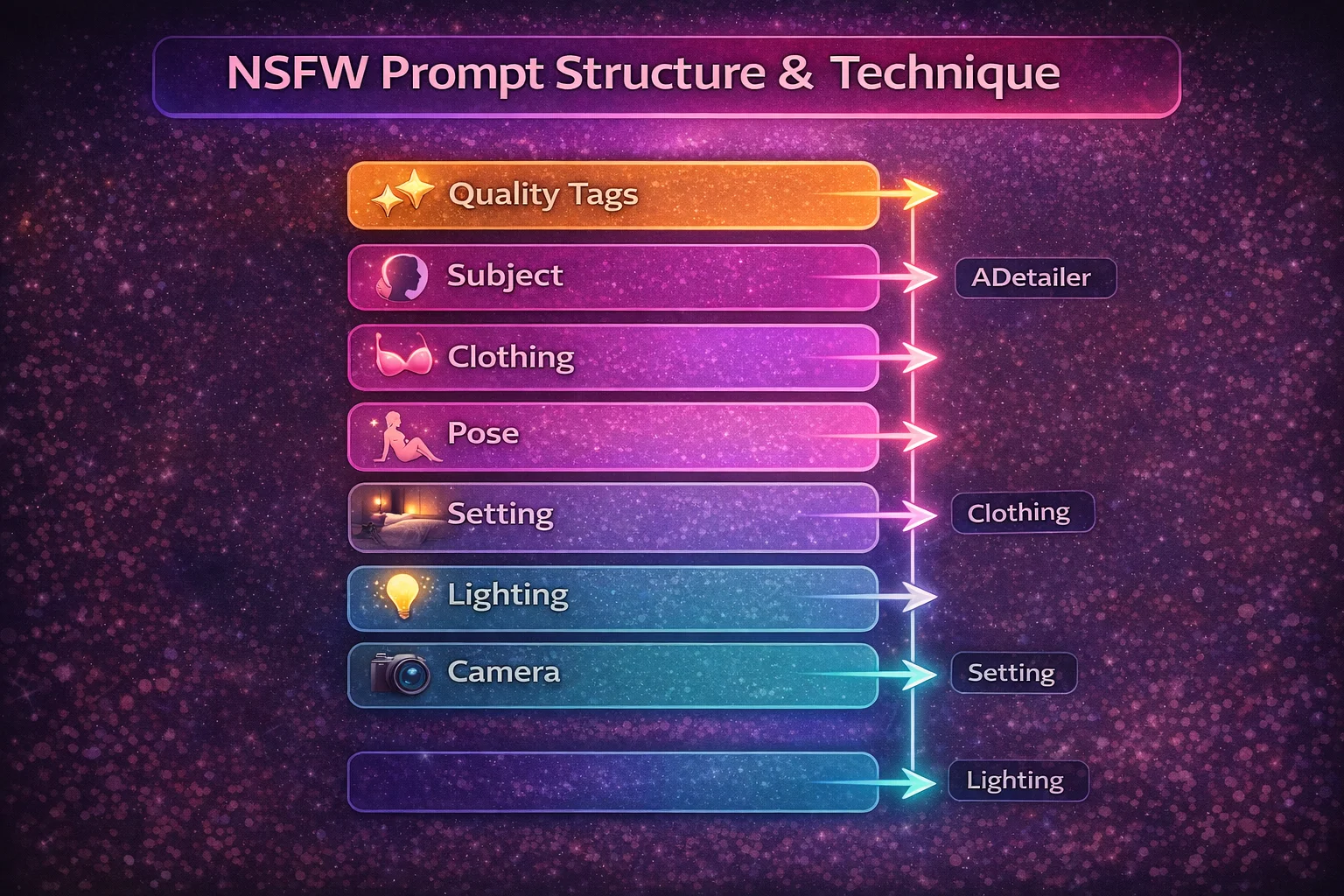
Organize your prompt in this order for best results:
- Quality tags: masterpiece, best quality, high resolution, detailed skin, photorealistic
- Subject description: Physical characteristics, hair, eye color, body type
- Clothing/state: What the subject is or is not wearing
- Pose and action: Position, expression, activity
- Setting: Location, background, environment
- Lighting and mood: Natural light, studio lighting, dramatic shadows
- Camera/composition: Close-up, full body, from above, depth of field
Negative Prompts
Negative prompts tell the model what to avoid. For NSFW generation, always include:
bad anatomy, bad hands, extra fingers, missing fingers, deformed, blurry, low quality, watermark, text, signature, extra limbs, fused fingers, poorly drawn face, mutation, ugly
Add negative embeddings like EasyNegative or bad-hands-5 for additional quality improvement.
Key Settings
- CFG Scale: 5-8 for most NSFW content. Higher values follow the prompt more literally but can produce artifacts. Lower values give the model more creative freedom.
- Sampling Steps: 25-35 steps for quality results. Going above 40 rarely improves quality and significantly increases generation time.
- Sampler: DPM++ 2M Karras or Euler a are reliable choices for most NSFW models.
- Resolution: 512×768 or 768×512 for SD 1.5 models. 1024×1024 or 1024×1536 for SDXL models.
Step 6: Improve Your Results
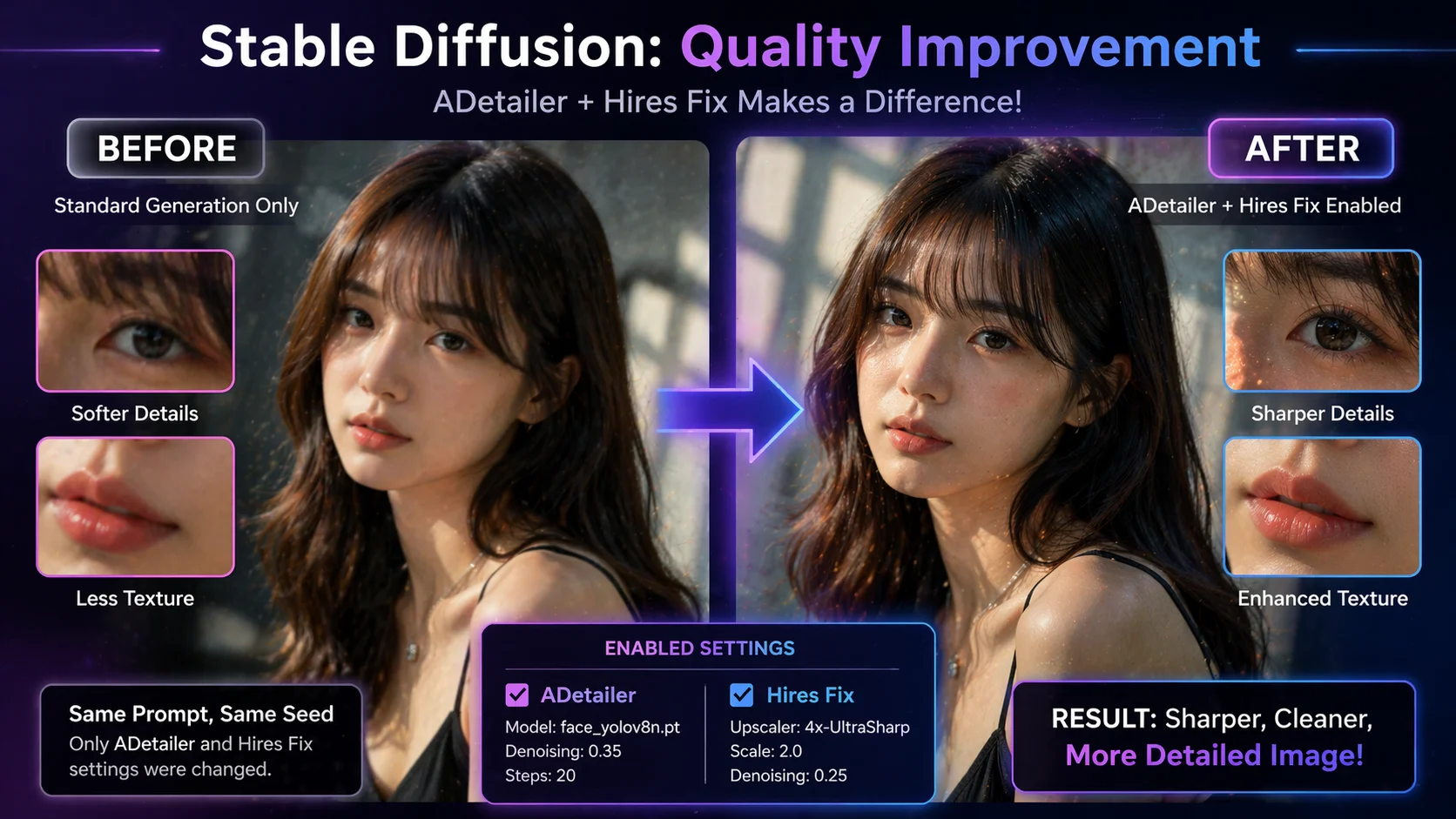
Several techniques help push NSFW generation quality from good to excellent:
ADetailer extension: Automatically detects and redraws faces and hands in generated images. This single extension eliminates the most common quality issues in NSFW AI art—distorted faces and malformed hands.
Hires Fix: Generates at a lower resolution first, then upscales with additional detail. Produces sharper, more detailed images than generating at high resolution directly. Use a 1.5-2x upscale with 10-15 denoising steps.
Inpainting: Select a specific area of a generated image and regenerate just that region. Perfect for fixing one problematic element (a bad hand, an odd expression) without regenerating the entire image.
ControlNet: An extension that lets you control pose, composition, and depth using reference images. Upload a pose reference, and ControlNet guides the generation to match that pose. This is the most reliable way to get specific body positions and compositions.
Cloud Alternatives: No GPU Required
If you lack the hardware for local generation, these cloud options run Stable Diffusion models remotely:
- Google Colab: Free tier available but GPU access is limited and NSFW content may violate terms of service. Use cautiously.
- RunPod: Rent GPU instances starting at $0.20/hour. Pre-built Stable Diffusion templates make setup fast. No content restrictions on what you generate.
- Vast.ai: Marketplace for GPU rentals, often cheaper than RunPod. Prices vary based on supply and demand.
- ThinkDiffusion: Managed Stable Diffusion hosting with a pre-configured Automatic1111 or ComfyUI interface. Starts at $0.50/hour with NSFW content allowed.
Common Issues and Fixes
Bad anatomy (extra fingers, deformed limbs): Use ADetailer extension, add anatomy-related negative prompts, and try different seeds. Some models handle anatomy better than others—Realistic Vision and CyberRealistic are particularly strong here.
Blurry or low-detail outputs: Enable Hires Fix, increase sampling steps to 30+, and ensure your quality tags are in the prompt. Check that you are generating at the model’s recommended resolution.
Out of memory errors: Lower the resolution, enable xformers or –medvram in launch arguments, or use a model designed for lower VRAM usage. SD 1.5 models use significantly less memory than SDXL.
Inconsistent character appearance: Use LoRAs trained on specific character appearances, or use reference images with ControlNet’s IP-Adapter to maintain consistency across generations.
Responsible Use
Stable Diffusion gives you complete freedom, which means responsibility falls entirely on you. Generate only content that is legal in your jurisdiction. Never create content depicting minors. Do not generate non-consensual imagery of real, identifiable people. The power of uncensored AI generation comes with the obligation to use it ethically.
Getting Started Today
The setup process takes about an hour for someone with basic computer skills. Install your chosen interface, download one or two recommended models from Civitai, and start experimenting with prompts. Your first results will not be perfect—prompt writing is a skill that improves with practice. Save your successful prompts, study the settings that work for your chosen model, and build from there.
Stable Diffusion remains the best option for uncensored AI art generation because no other tool matches its combination of quality, control, and freedom. The initial setup investment pays off quickly once you start producing images that match your exact vision without any platform telling you what you can and cannot create.