How to Use Text-to-Image AI for NSFW: Beginner’s Guide
Text-to-image AI turns written descriptions into pictures. You type what you want to see, and the AI generates an image matching your description. For NSFW content, this means typing a description of an adult scene and receiving a generated image within seconds. No artistic skill required, no drawing ability needed—just the ability to describe what you want in words.
If you’ve never generated an AI image before, this guide starts from absolute zero. By the end, you’ll understand how the technology works, know which platforms to use, and have the prompting skills to create quality NSFW images consistently.
What You Need to Get Started
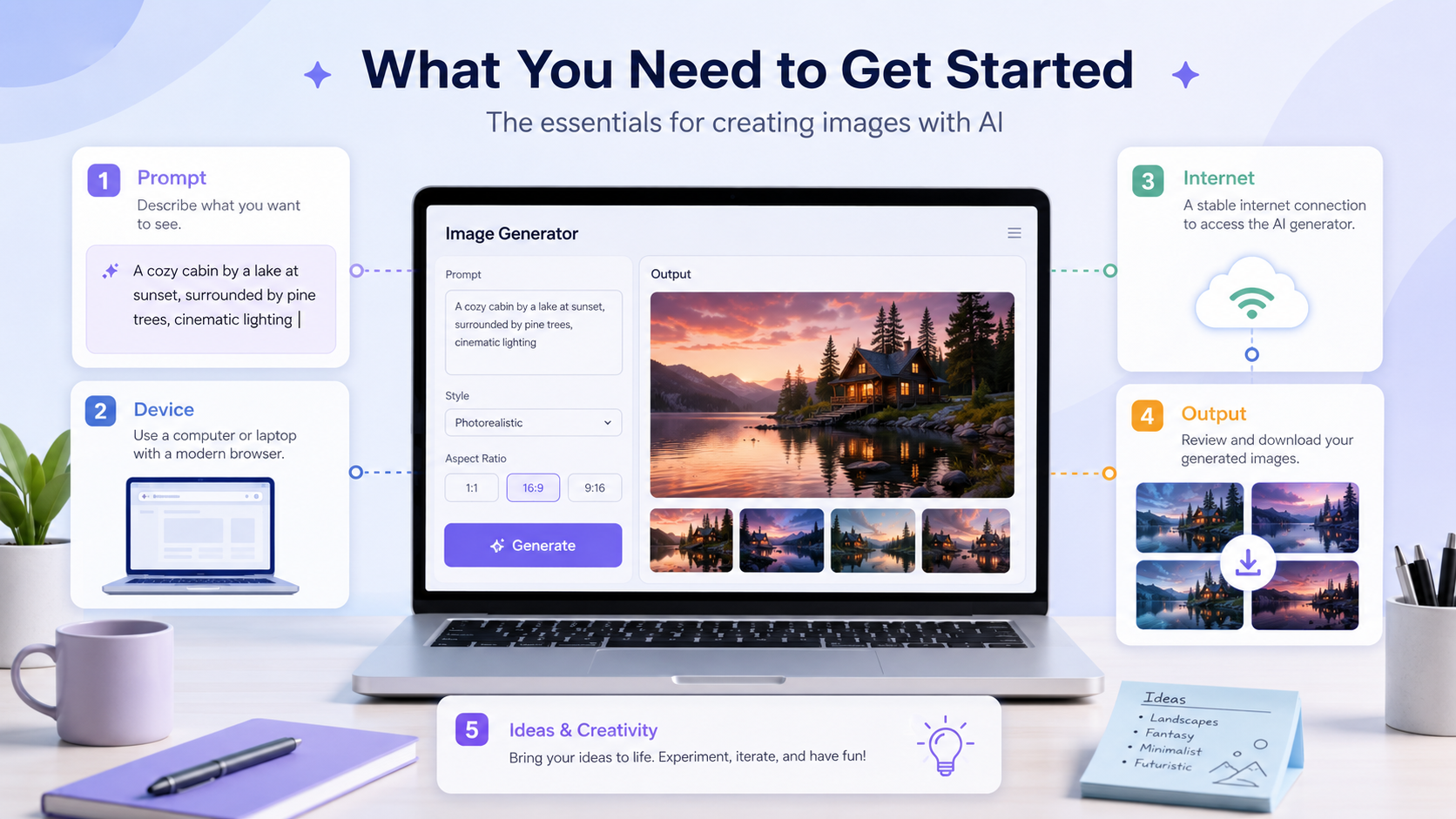
Two paths exist for NSFW text-to-image generation: web platforms and local installation. Beginners should start with web platforms.
Web Platforms (Recommended for Beginners)
Web-based generators run entirely in your browser. No software to install, no GPU requirements, no technical setup. Create an account, type a prompt, and generate. Most platforms offer free tiers with limited daily generations, then paid plans for more volume and features.
What you need: a modern web browser, an email address for registration, and optionally a payment method for premium features.
Local Installation (Advanced)
Running Stable Diffusion on your own computer gives you unrestricted access to any model, unlimited free generations, and total privacy. The tradeoff: you need a capable NVIDIA GPU (8GB+ VRAM), comfort with command-line tools, and patience for initial setup that can take 1–3 hours.
This guide focuses on web platforms. Once you’re comfortable with the concepts, transitioning to local Stable Diffusion is straightforward because the underlying principles (prompts, models, settings) are identical.
Choosing Your First Platform

Promptchan AI
Best for: beginners who want to learn from others. Promptchan’s community gallery shows thousands of images with their exact prompts visible. Browse the gallery, find an image similar to what you want, copy the prompt, modify it, and generate. This shortcut dramatically accelerates the learning process.
Free tier: limited daily generations at standard quality. Paid plans start around $6/month for more generations, higher quality, and private mode.
SoulGen
Best for: beginners who want realistic or anime NSFW images with minimal prompt expertise. SoulGen’s interface guides you through the creation process with style presets and tag suggestions. The results are consistently good even with simple prompts.
PornX AI
Best for: beginners who don’t want to write prompts at all. PornX uses a tag-based system where you select visual attributes from menus instead of writing descriptions. Choose body type, hair color, setting, and pose from predefined options. The AI combines your selections into a generated image. Writing-free creation.
Seduced AI
Best for: beginners wanting realistic content specifically. The platform offers quality presets and guided generation that simplifies the process while producing strong photorealistic outputs.
Understanding Prompts: The Language of AI Image Generation
【位置】H2「Understanding Prompts: The Language of AI Image Generation」直下
【内容】「Understanding Prompts: The Language of AI Image Generation」セクションの内容を視覚的に補足するインフォグラフィックまたはスクリーンショット
【サイズ】1200×675px、中央寄せ
【alt】Understanding Prompts: The Language of AI Image Generation visual guide and infographic
【ファイル名例】how-to-use-text-to-image-ai-for-nsfw-beg-understanding-prompts-the-lang.webp
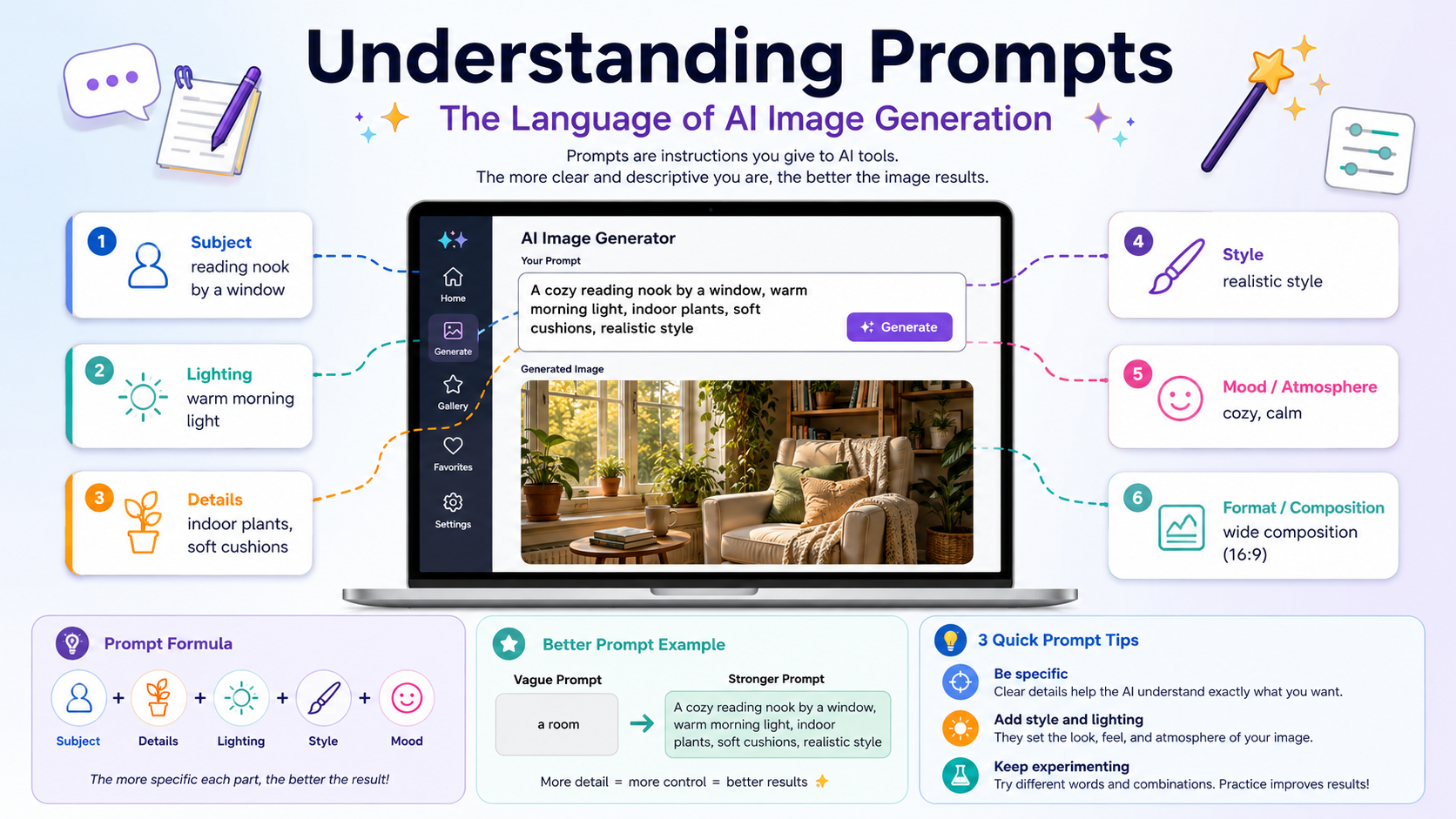
A prompt is the text description you give the AI. Everything the AI generates comes from interpreting your words. Better prompts produce better images—this is the single most important skill in AI image generation.
Prompt Structure
Effective NSFW prompts follow a consistent structure. Think of building the prompt in layers:
Layer 1 — Subject: Who or what is in the image. “A woman,” “a couple,” “a man.” Add physical descriptions: age range, build, hair, skin tone.
Layer 2 — Appearance: Detailed physical attributes. Hair color and style, eye color, body type, facial expression. Be specific: “long wavy red hair, green eyes, athletic build, confident smile” beats “attractive woman.”
Layer 3 — Clothing/State: What they’re wearing or not wearing. “Nude,” “wearing black lingerie,” “topless in jeans,” etc.
Layer 4 — Pose and Action: What the subject is doing. “Standing with hands on hips,” “lying on a bed,” “sitting in a chair looking at the viewer.”
Layer 5 — Setting: Where the scene takes place. “Luxury bedroom,” “beach at sunset,” “shower,” “professional photography studio.”
Layer 6 — Technical Quality: Photography and quality terms. “Photorealistic, high resolution, detailed, professional lighting, 8k, sharp focus.”
Your First Prompt
Combine all six layers into one prompt:
“A beautiful woman, long brown hair, blue eyes, slim body, nude, lying on white silk sheets, bedroom setting, soft warm lighting, photorealistic, high quality, detailed, 8k resolution”
This prompt covers every layer: subject, appearance, state, pose, setting, and quality. The AI has clear instructions for every aspect of the image.
Common Beginner Mistakes
Too vague: “sexy woman” gives the AI almost nothing to work with. Results will be random and inconsistent. Add details to every layer.
Contradictory instructions: “realistic anime girl” confuses the AI because realistic and anime are opposite style directions. Choose one style.
Too many subjects: “five people in a complex scene” overwhelms current AI models. Start with one or two subjects maximum.
Ignoring quality tags: Skipping Layer 6 produces lower quality outputs. Always include quality descriptors.
Understanding Negative Prompts
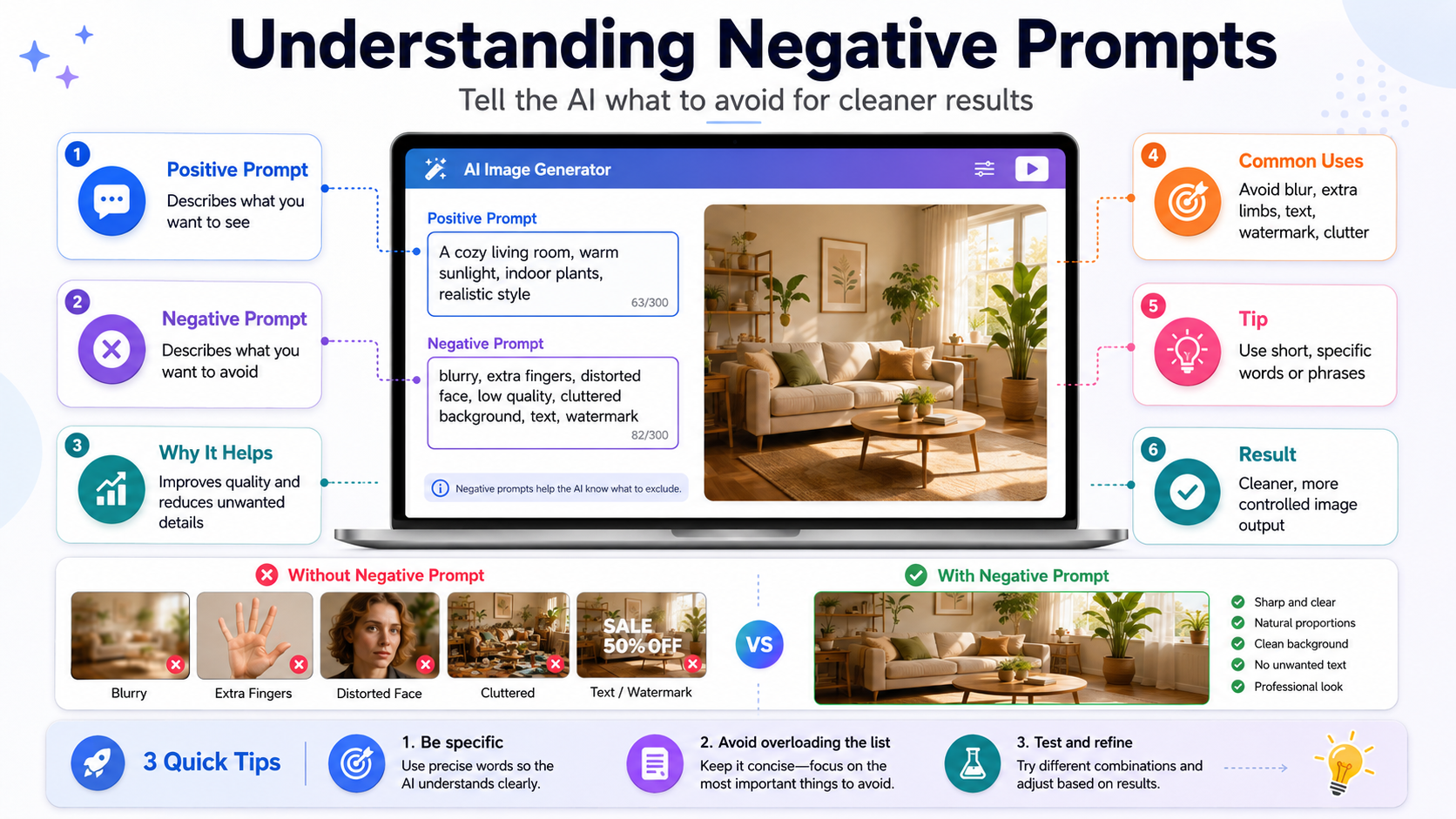
Negative prompts tell the AI what NOT to include. They’re just as important as positive prompts for quality output.
Standard negative prompt for realistic NSFW: “blurry, low quality, distorted, bad anatomy, extra fingers, extra limbs, deformed hands, ugly, cartoon, anime, drawing, painting, text, watermark, signature, oversaturated”
Standard negative prompt for anime NSFW: “realistic, photograph, 3d render, blurry, low quality, worst quality, bad anatomy, extra fingers, deformed, ugly, watermark, text”
Copy these negative prompts into every generation. They prevent the most common quality problems. Most platforms have a separate field for negative prompts—look for it in the settings or advanced options.
Key Settings Explained
Beyond prompts, several settings affect your output. Each platform labels them slightly differently, but the concepts are universal.
Art Style / Model
The most important setting. Choose between realistic, anime, hentai, fantasy, or other presets. This determines the fundamental visual style of your output. Pick this first—it shapes how the AI interprets every other setting and prompt word.
CFG Scale (Guidance Scale)
Controls how strictly the AI follows your prompt. Scale of 1–20 on most platforms.
- Low (1–4): AI takes creative liberty. Results may surprise you—sometimes pleasantly, sometimes not.
- Medium (5–8): Balanced. AI follows your prompt while maintaining natural-looking results. Best range for most use cases.
- High (9–15): Strict adherence to prompt. Images may look oversaturated or artificial at very high values.
Start at 7. Adjust up if the AI ignores important parts of your prompt. Adjust down if images look artificial or overly processed.
Steps (Sampling Steps)
How many refinement passes the AI makes. More steps = more detail but longer generation time.
- 20 steps: Quick generation, decent quality. Good for testing prompts.
- 30–40 steps: Good balance of quality and speed. Recommended for most generations.
- 50+ steps: Diminishing returns. Quality improvement is minimal beyond 40–50 steps for most models.
Aspect Ratio / Resolution
Portrait (tall) ratios work best for single-subject standing poses. Landscape (wide) ratios suit reclining poses and scenes with backgrounds. Square ratios work for close-up portraits and headshots.
- Portrait: 512×768, 768×1024, or similar vertical ratios
- Landscape: 768×512, 1024×768, or similar horizontal ratios
- Square: 512×512, 768×768, or 1024×1024
Higher resolutions produce sharper images but take longer to generate and may cost more credits on paid platforms.
Seed Number
Each generation uses a random seed number that determines the specific output. Same prompt + same seed = same image. Useful for reproducing a result you liked or making small prompt adjustments while keeping the same basic composition.
Most platforms show the seed number for each generation. Save it when you get a result you like.
Step-by-Step: Your First Generation
- Open your chosen platform and create an account.
- Select an art style (start with “realistic” or “photorealistic”).
- Type your prompt using the six-layer structure explained above.
- Add a negative prompt in the appropriate field.
- Set CFG scale to 7 and steps to 30 (if adjustable on your platform).
- Choose a portrait aspect ratio for a standing subject or landscape for a reclining one.
- Click generate.
- Wait 10–60 seconds for the result.
- Evaluate: Does it match your vision? Which parts work? Which need improvement?
- Adjust your prompt based on the result and generate again.
Repeat steps 9 and 10 until you’re satisfied. Every generation teaches you something about how the AI interprets your words. Within 10–20 generations, you’ll develop an intuitive understanding of what prompt terms produce what visual effects.
Improving Your Results: Prompt Refinement
Adding Detail Gradually
Start with a simple prompt and add details one at a time. This way, you can see exactly what each addition changes. If you write a 200-word prompt on your first try and the result is wrong, you won’t know which part caused the problem.
Generation 1: “Beautiful woman, nude, bedroom, photorealistic”
Generation 2: Add appearance — “Beautiful woman, long black hair, brown eyes, slim body, nude, bedroom, photorealistic”
Generation 3: Add pose — “Beautiful woman, long black hair, brown eyes, slim body, nude, lying on bed, looking at viewer, bedroom, photorealistic”
Generation 4: Add lighting — “Beautiful woman, long black hair, brown eyes, slim body, nude, lying on bed, looking at viewer, soft warm lighting, bedroom, photorealistic, high quality”
Each version builds on the last, and you can see exactly how each addition affects the output.
Learning from Community Galleries
Platforms like Promptchan AI display the exact prompt used for every public image. Browse the gallery, find images you admire, and study their prompts. Notice which terms appear frequently in high-quality outputs. Adapt those terms for your own prompts.
This is the fastest way to learn effective prompt vocabulary. Real results from real prompts teach more than any guide can.
Saving Effective Prompts
When you create a prompt that produces great results, save it in a text file. Build a personal library of working prompts organized by style, subject, and setting. Modify these proven templates for new generations rather than writing from scratch every time.
What to Do When Results Are Bad
- Wrong body proportions: Add specific body descriptors (“slim waist, long legs, natural proportions”) and negative prompts (“deformed, disproportionate”).
- Distorted face: Add “beautiful face, symmetric features, detailed eyes” and negative “ugly face, deformed face, asymmetric.”
- Bad hands: The most common AI image problem. Add “detailed hands, correct fingers, five fingers” and negative “extra fingers, missing fingers, bad hands, fused fingers.” Even with these, hands remain challenging. Cropping or posing hands out of frame is a valid workaround.
- Wrong style: Make sure your art style selection matches your prompt. Don’t prompt for photorealism while using an anime model.
- Blurry output: Increase resolution, add “sharp focus, high detail, 8k” to prompt, increase sampling steps.
- Too many random elements: Your prompt is too vague. Add more specific details to each layer.
Moving Beyond Basics
Once you’re comfortable with basic generation, explore these intermediate features:
- Image-to-image: Upload a reference photo and transform it based on your prompt. More control over composition than pure text generation.
- Inpainting: Fix specific areas of a generated image without regenerating the whole thing. Perfect for correcting hand errors or facial issues.
- LoRA models: Small add-on models that adjust the style or add specific character features. Available on Stable Diffusion and some web platforms.
- Prompt weighting: Emphasize or de-emphasize specific parts of your prompt using weight syntax. “(beautiful face:1.3)” gives extra importance to facial quality.
Text-to-image AI for NSFW content has a genuine learning curve, but it’s a satisfying one. Each generation builds your understanding of how AI interprets language, and the gap between your first attempts and your twentieth will be dramatic. Start simple, iterate consistently, and save what works. Within a few sessions, you’ll be generating images that would have seemed impossible to create without artistic training just a few years ago.